
Skip to content
BL - Beacoland
  • Wiki
    • Getting Started
      • How to Join Beacoland
      • Survival Server Rules
      • Approved Mods
      • Beacoland Recommended Mod Pack
    • Gameplay
      • Beacoland Features
      • Performance & Mob Behavior
    • Districts
      • Shopping District Rules & Guidelines
      • Shopping District Minimum Prices
      • Shop Search & Shop Management Guide
      • Gaming District Guidelines
    • Community & Server Info
      • Punishments & Enforcement
    • Progression & Support
      • Beacoland Ranks
      • Vote for Beacoland
    • Guides
      • Minecraft Ore Generation Guide for 1.21
      • Minecraft 1.21 Villager Trading & Enchanted Book Guide (Java / Vanilla)
    • World Downloads
      • Beacoland Survival World Download
      • Beacoland Creative World Download
      • Beacoland Other World Download
  • Survival
    • Map
    • Stats
  • Team
  • Posts
    • Beacoland – Minecraft 1.21.11
    • What Makes the Best Survival Minecraft Server?
Play Now
  • Wiki
    • Getting Started
      • How to Join Beacoland
      • Survival Server Rules
      • Approved Mods
      • Beacoland Recommended Mod Pack
    • Gameplay
      • Beacoland Features
      • Performance & Mob Behavior
    • Districts
      • Shopping District Rules & Guidelines
      • Shopping District Minimum Prices
      • Shop Search & Shop Management Guide
      • Gaming District Guidelines
    • Community & Server Info
      • Punishments & Enforcement
    • Progression & Support
      • Beacoland Ranks
      • Vote for Beacoland
    • Guides
      • Minecraft Ore Generation Guide for 1.21
      • Minecraft 1.21 Villager Trading & Enchanted Book Guide (Java / Vanilla)
    • World Downloads
      • Beacoland Survival World Download
      • Beacoland Creative World Download
      • Beacoland Other World Download
  • Survival
    • Map
    • Stats
  • Team
  • Posts
    • Beacoland – Minecraft 1.21.11
    • What Makes the Best Survival Minecraft Server?
Beacoland
  • Support the Server
Play Now
Login
BL - Beacoland

Getting Started

4
  • Approved Mods
  • Beacoland Recommended Mod Pack
  • How to Join Beacoland
  • Survival Server Rules

Gameplay

4
  • Beacoland Performance and Mob Behaviour Guide
  • Beacoland Ranks
  • Beacoland Locations
  • Beacoland Features

Districts

4
  • Shopping District Rules & Guidelines
  • Gaming District Guidelines
  • Shop Search & Shop Management Guide
  • Shopping District Minimum Prices

Community & Server Info

1
  • Punishments & Enforcement

Progression & Support

1
  • Vote for Beacoland

Guides

2
  • Minecraft Ore Generation Guide for 1.21
  • Minecraft 1.21 Villager Trading & Enchanted Book Guide (Java / Vanilla)

World Downloads

3
  • Beacoland Survival World Download
  • Beacoland Creative World Download
  • Beacoland Other World Download
View Categories
  • Home
  • Docs
  • Gameplay
  • Districts
  • Shop Search & Shop Management Guide

Shop Search & Shop Management Guide

4 min read

Beacoland shop search lets you create shops, list items, and find products across the server using a simple and intuitive GUI.

Everything is designed to be used through the GUI, with a small command required when creating your shop.


Opening the Shop Menu #

To get started, run:

/sh

This opens the Beacoland Shops Menu.

beacoland shop search menu


Main Menu Overview #

The menu provides options for managing your shops and searching for items.


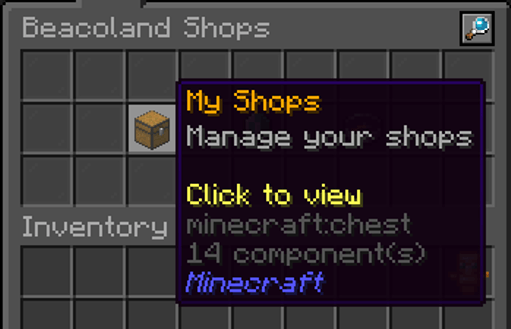
My Shops #

Manage your shops:

  • View all your shops
  • Edit items and prices
  • Restock or remove listings
  • Add co-owners
beacoland shop search menu

beacoland shop search my shops


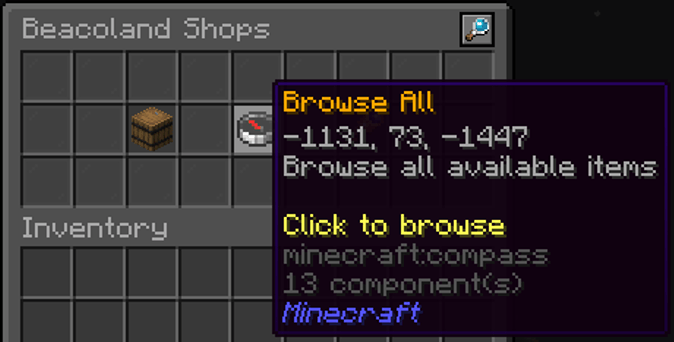
Browse All #

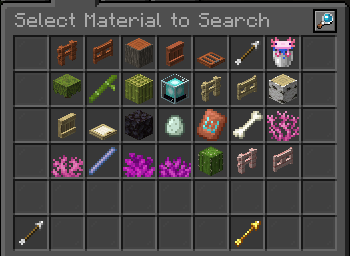
Browse all available items currently listed across player shops.

  • Discover shops you may not have visited
  • View all items in one place
  • Quickly compare prices

beacoland shop search browse all


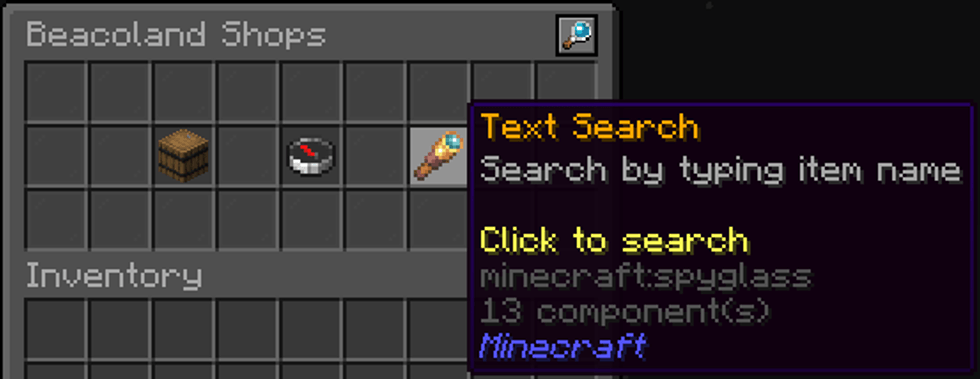
Text Search #

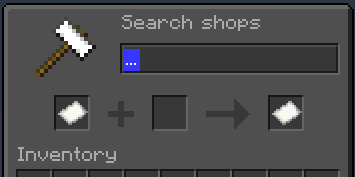
Search for a specific item by name.

  • Opens an anvil-style search interface
  • Type the item name to search
  • Shows all shops selling that item
  • Ideal for targeted searches

beacoland shop search text search


Creating a Shop #

  1. Stand at your shop location
  2. Open /sh
  3. Click Create New Shop
  4. Run the command shown: /sh create <name>
  5. Enter your shop name

Your shop is now created and linked to your location.

Important #

  • Your shop is registered exactly where you stand
  • Always create it inside your plot
  • Choose a clear and appropriate name

Managing Your Shop #

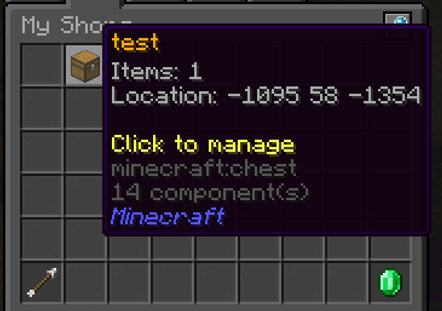
Go to My Shops and click your shop.

From here you can:

  • View all listed items
  • Add new items
  • Edit existing items
  • Restock items
  • Add co-owners
beacoland shop search my shops

beacoland shop search my shops


Shop Co-owners #

You can add co-owners to help manage your shop.

Co-owners can:

  • Edit prices and quantities
  • Add and remove items
  • Restock items (updates the timer)

Use:

/sh addcoowner <shop> <player>

Adding & Editing an Item #

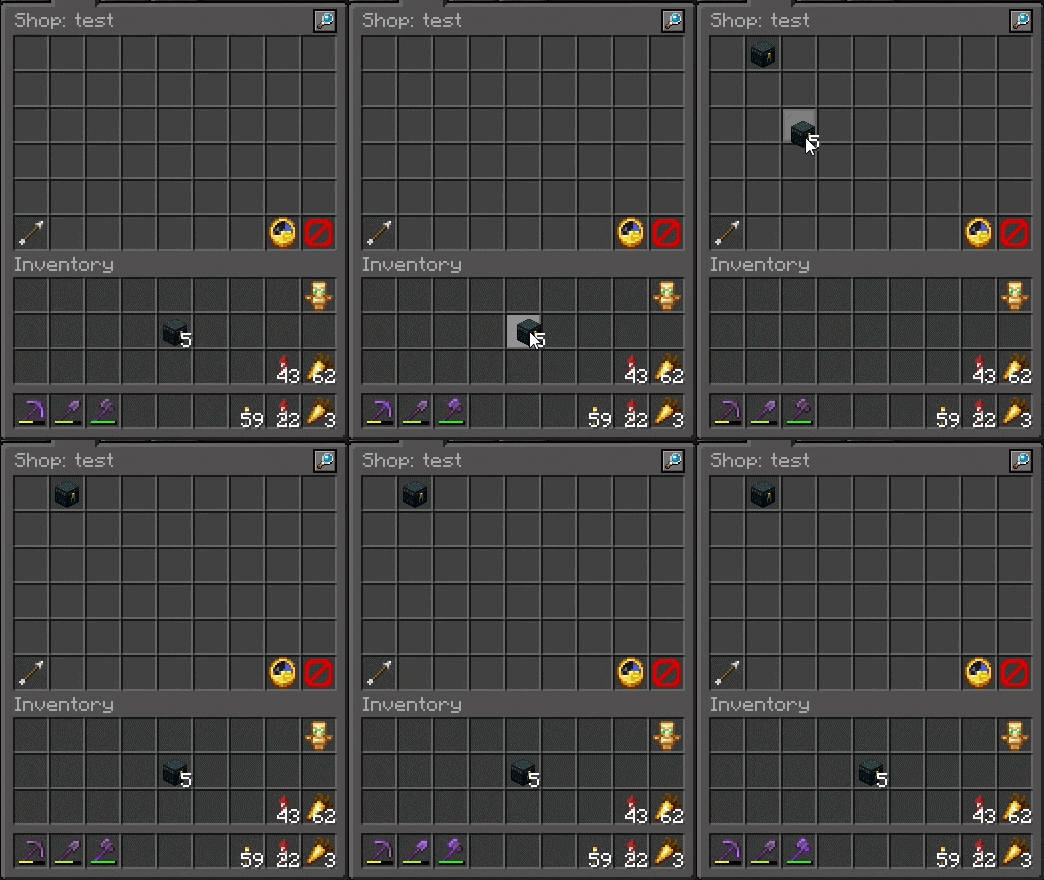
  1. Place an item into the shop GUI
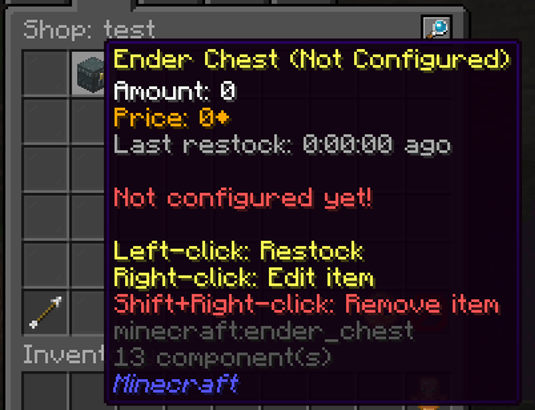
  2. Right-click the item
  3. Configure:
    • Price (cost per bundle)
    • Quantity (items per bundle)
  4. Confirm the setup
beacoland shop search item editor

beacoland shop search item editor


Price & Quantity Controls #

When editing an item, you can use quick controls to speed up setup.

Preset Buttons #

  • Bundle sizes: 1, 16, 32, 64
  • Prices: 1, 4, 8, 16

Adjustment Buttons #

  • Use -10 / +10 to adjust:
    • Quantity
    • Price

💡 Tip
Use presets for quick setup, then fine-tune using the adjustment buttons.


Important: Quantity vs Stock #

  • Quantity = how many items are sold per transaction
    • Example: 64 stone for 1D
  • Stock is not tracked
  • Restocking simply updates the “last restocked” timer

This means shops do not run out of items — the system is based on trust.


Restocking #

Left-click an item to restock it:

  • Updates the last restocked timer instantly

Removing an Item #

Shift + Right-click an item to remove it from your shop.


Searching for Items #

  1. Open /sh

Choose a search method: #

  • Browse All
    View all items currently listed across the server
  • Text Search
    Opens an anvil-style menu where you can type the item name
  1. Enter the item name (Text Search) or select an item (Browse All)
  2. Select the item you want

The GUI will show all shops selling that item.
beacoland shop search results

beacoland shop search results

You’ll see:

  • Seller
  • Amount
  • Price
  • Location (including distance from you)
  • Last restocked

This makes it easy to find the best deals or track recently restocked shops.


Tracking Shops #

When viewing a shop from the search results, you can get a tracking compass to guide you directly to it.

  1. Click the compass icon in the GUI
  2. You will receive a tracking compass
  3. Follow the compass to the shop location
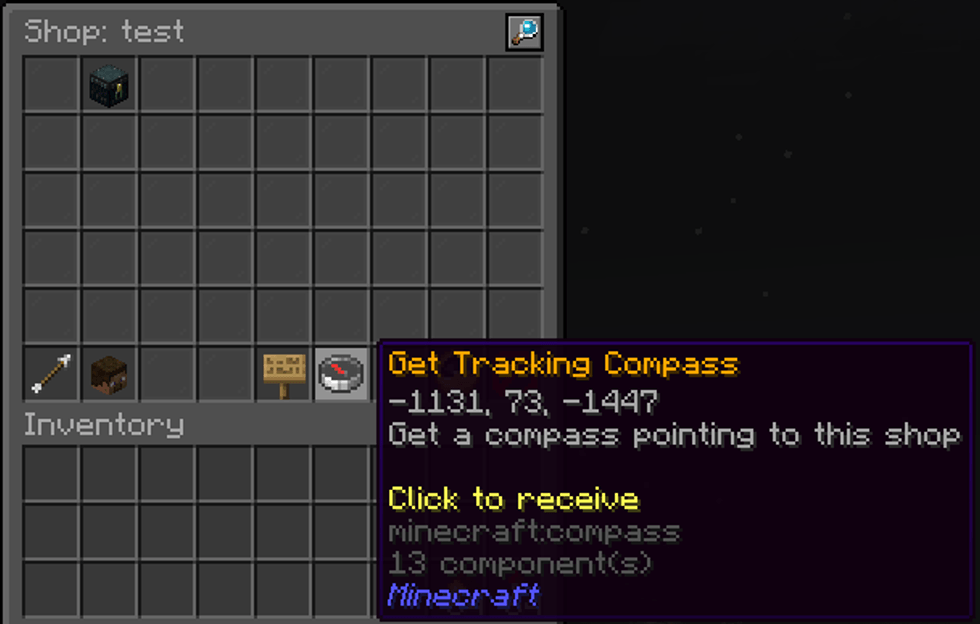
beacoland shop search tracking compass


How it works #

  • The compass points directly to the selected shop
  • It will automatically disappear when you arrive
  • You can also drop the compass to remove it manually

This prevents unused compasses from being left in the world.

💡 Tip
Use the tracking compass when exploring new shops or when you’re unsure where a shop is located.


Rules & Expectations #

  • Shops must follow the Shopping District rules
  • No misleading pricing or troll listings
  • Shops should be clearly accessible

Commands (Optional) #

While the GUI is recommended, these commands are available:

/sh                     → Open main menu  
/sh create <name>       → Create a shop  
/sh search <item>       → Search for an item  
/sh edit <shop>         → Edit shop name or location  
/sh list <shop>         → View all items in a shop  

/sh addcoowner <shop> <player>    → Add a co-owner  
/sh removecoowner <shop> <player> → Remove a co-owner  

/sh restock <shop> add held/<item> <quantity> <price> → Add/restock an item via command 

Frequently Asked Questions #

Do I need commands to use the shop system?
Most features are handled through the GUI, but creating a shop currently requires a command.

Why is my shop not showing?
Make sure your shop has been created correctly and contains items for sale.

Updated on 8 April 2026

Was this page helpful?

  • Happy
  • Normal
  • Sad

Share This Article :

  • Facebook
  • X
  • LinkedIn
  • Pinterest
Gaming District GuidelinesShopping District Minimum Prices

Leave a ReplyCancel Reply

Your email address will not be published. Required fields are marked *

This site is protected by reCAPTCHA and the Google Privacy Policy and Terms of Service apply.

The reCAPTCHA verification period has expired. Please reload the page.

Table of Contents
  • Opening the Shop Menu
  • Main Menu Overview
    • My Shops
    • Browse All
    • Text Search
  • Creating a Shop
    • Important
  • Managing Your Shop
    • Shop Co-owners
  • Adding & Editing an Item
  • Price & Quantity Controls
    • Preset Buttons
    • Adjustment Buttons
    • Important: Quantity vs Stock
  • Restocking
  • Removing an Item
  • Searching for Items
    • Choose a search method:
  • Tracking Shops
    • How it works
  • Rules & Expectations
  • Commands (Optional)
  • Frequently Asked Questions

Ready to join Beacoland?

If Beacoland sounds like the kind of server you're looking for, the next step is simple. Join our Discord, read the rules, and apply when you're ready.

Join Discord
BEACOLAND

A Hermitcraft-inspired, community-first Minecraft survival server built around trust, community projects, and long-term worlds where your builds matter.

No land claims No pay-to-win Community first

Season 8

  • What to Expect
  • Voting Ranks Update
  • Server Features
  • Server Rules

Play & Progress

  • How to Join
  • Vote & Progress
  • Player Stats
  • Beacoland Stories

Community

  • Join the Discord
  • Shopping District
  • Support Beacoland
  • Contact
© 2026 Beacoland. All rights reserved. Hermitcraft-inspired. Not affiliated with Mojang, Microsoft, or Hermitcraft.