
At Beacoland, players can build their own shops in the dynamic Shopping District, a prime location for selling items, trading, and participating in the in-game economy. To ensure a fair and organized experience for all players, we have a few simple rules for shop construction.
Shopping District can be accessed via portal in the Nether Hub at coordinates 25 136 -35.
💎 Shop Licences #
To open a shop, you must purchase a Shop License from the Happy Ghastling and display it on a lectern in front of the shop. All shops require the same licence regardless of size or number of items sold.
- Shop Licence – 64 diamonds
- The dimensions of your shop can be up to maximum 25 x 25 blocks (total 625 blocks in volume, and does not have to be perfect cube, can also be 20 x 30 f.e)
- Your shop can be smaller than 25 x 25, claim only as much land as you actually need
- Shops can go 25 blocks up and 25 blocks down, starting from the ground
- All license sales are final, no refunds
Claim only the land you need. If you’re selling just a few items, do not take a large plot that will sit mostly empty. Be considerate of space and other players, leave at least a few block gap between shops. Shops must be appropriately sized for what they sell. The team reserves the right to request a redesign if necessary.
📖 Shopping District Rules #
1. Open shop within 7 days #
After purchasing your plot, you must build, open and stock your shop within 7 days. Failure to do so will result in losing your plot. Extensions may be considered upon request.
2. Validate your shop using a lectern and sign #
Display the shop licence in a lectern in front of the shop at all times. Declare who owns the shop by writing your IGN(s) on a sign – you need to indicate everyone who is part of the shop.
3. All players can own or be part of only 1 shop #
Each player is allowed to be part of only 1 shop, meaning you can either own a shop alone, or team up with other players. Stocking or taking profits from a shop you are not part of is prohibited. Combining or connecting shops is not allowed in any shape or form.
4. Follow the minimum prices #
Minimum prices can be found here. If an item or block isn’t on the list, you’re free to set any price you like.
5. Follow all lag prevention rules #
- No Item Frames or Banners – Item frames and banners are not allowed as decoration anywhere in the Shopping District. Map art or banner art shops may use up to 10 in total to display their own artwork that they are selling — for example, 5 item frames and 5 banners.
- No Paintings – Paintings are not allowed to be used as decoration.
- No Armour Stands – To reduce the amount of entities and therefore loss of FPS, armour stands are not permitted.
- No Glow Ink – Glow ink on signs is not permitted. Use colour codes (/colour) or dye to enhance visibility.
- Redstone Rules – Redstone machines and decorative redstone components are not allowed in the Shopping District, including but not limited to items like minecarts, powered rails, redstone lamps, pistons, repeaters, comparators, hoppers, redstone dust, etc. Only exceptions are dispensers/droppers with a button to give out an item you sell and small hopper refill setups. If you are not sure, please ask Team.
- Storage Rules – We strongly recommend using barrels instead of chests or shulker boxes for item storage. Boat chests, chest minecarts, and storage animals (like llamas, donkeys, and camels) are not permitted.
- No Mobs – Don’t bring any mobs or animals into the SD.
- Shelves – Displaying items in shelves is not allowed. Using shelves as purely a decoration block is allowed however.
6. Decoration rules #
- Shops can be connected with paths keeping the same block palette as the main roads. Be considerate about the space around you and possible neighbour shops.
- Do not use an excess of noisy blocks.
- Maximum size shops (25 x 25) may have small decorative items 1 block outside the plot size, for example: glow lichen, signs, mini heads, etc.
- Leave a few blocks of space between you and your neighbouring shops.
7. Inactivity and ban policy #
If you’re inactive for 20 or more days, your shop will be removed. However, we’re happy to extend this period by up to 7 days or the equivalent of your vacation, within reason. Additionally, if you are banned, your plot will be forfeited, and your shop will be taken down.
8. Advertise your shop #
- You may claim one of the barrels at the Shopping District portal to display items you sell.
- Create a post via Discord #survival-shops.
- Add your shop and items you sell to our custom Shop Directory. You can find the guide on how to use it below!
9. Make your shop look nice #
Shop designs do not need to follow any theme but must not be an eyesore – don’t build just a dirt and cobblestone cube. We reserve the right to ask for a redesign.
10. Shops are only allowed in the Shopping District and nowhere else #
11. No loan offices, banks or casinos are allowed in the Shopping District. #
Due to potential issues with players not being able to pay back the loans, no banks or loan offices are permitted anywhere. Casinos can be moved to the future Gaming District.
Team reserve the right to remove any shop that breaks these rules. If your shop is removed open a ticket on discord to retrieve your items. We do not refund the license cost from any shop removed/left.
🗺️ Shop Directory Plugin Guide #
Beacoland features a custom shop directory plugin that makes finding items in the Shopping District quick and easy. Shop owners are required to add their shops to the directory and list the items they’re selling, ensuring players can easily search and locate exactly what they need. This makes shopping more convenient and efficient for everyone.
#
How To Set Up A New Shop: #
To set up your shop in the directory, you need to stand exactly where your shop is and where you want potential customers to go when looking for your shop, and type:
- /sh create [shopname]
Example: /sh create BobsShop – this will create a new shop in the directory called BobsShop.

#
How To Add Items To Your Shop: #
Now that you have created your shop, it’s time to add the items you sell! To do that, stand in front of the container containing one of the items you want to add to the directory, and type:
- /sh restock [shopname] set [item] [quantity] [price]
Example: /sh restock BobsShop set firework_rocket 192 1 – this will add rockets priced at 1 diamond per 192 rockets (3 stacks) to your shop item list. You must do this separately for each item you sell. You do not need to add ALL of the stock for one item – the idea is to just present your item and what price you are selling it for.

If you want to change the quantity of item you have already listed, type:
- /sh restock [shopname] add [item] [quantity]
Example: let’s say you are selling totems of undying for 1 diamonds per 1 totem and you want to change that to 1 diamond per 3 totems: /sh restock BobsShop add totem_of_undying 2 – now your totems are listed as 1 diamond per 3 totems. To subtract quantity, just add – in front of number.

- Using /sh restock [shopname] material [item] will simply update the time when item was last restocked.
To remove an item you have listed, use:
- /sh restock [shopname] remove [item] [quantity] [price]
Example: you have listed 3 totems selling for 1 diamond but now want to remove it: /sh restock BobsShop remove totem_of_undying 3 1

#
How To Search For Items #
You are able to search for any item that a shop owner has added to their stock list. The search will give you exact coordinates of the item + quantity and price. Please note that searching for items works only when used in Overworld. It does NOT work in the Nether. To search for an item, type:
- /sh search [item]
Example: you are looking to buy some totems but don’t know where they are! To make your life easier, you search /sh search totem_of_undying. If an item as been listed, it will look something like this:
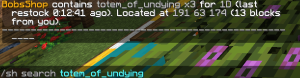
To see all the items that a specific shop is selling, type:
- /sh list [shopname]
Example: /sh list BobsShop
Editing & Deleting Your Shop #
To edit the location or name of your shop, use:
- /sh edit [shopname] [newname]
- /sh edit [shopname] [location]
Location is based on where you stand!
To delete your shop, type:
- /sh delete [shopname]
This cannot be undone, please be careful!
The shop directory is purely visual – it does not affect any actual items or containers.


