
To play on Beacoland, you need to link your Minecraft account with Discord. This allows us to verify players, grant access to the server, and connect you with the community.
This guide walks you through the full process step-by-step.
Before You Start #
Before joining the server, make sure you have:
- Completed the Beacoland application
- Been approved
- Received the Member role in Discord
If you haven’t done this yet, you won’t be able to link your account.
Step 1: Join the Minecraft Server #
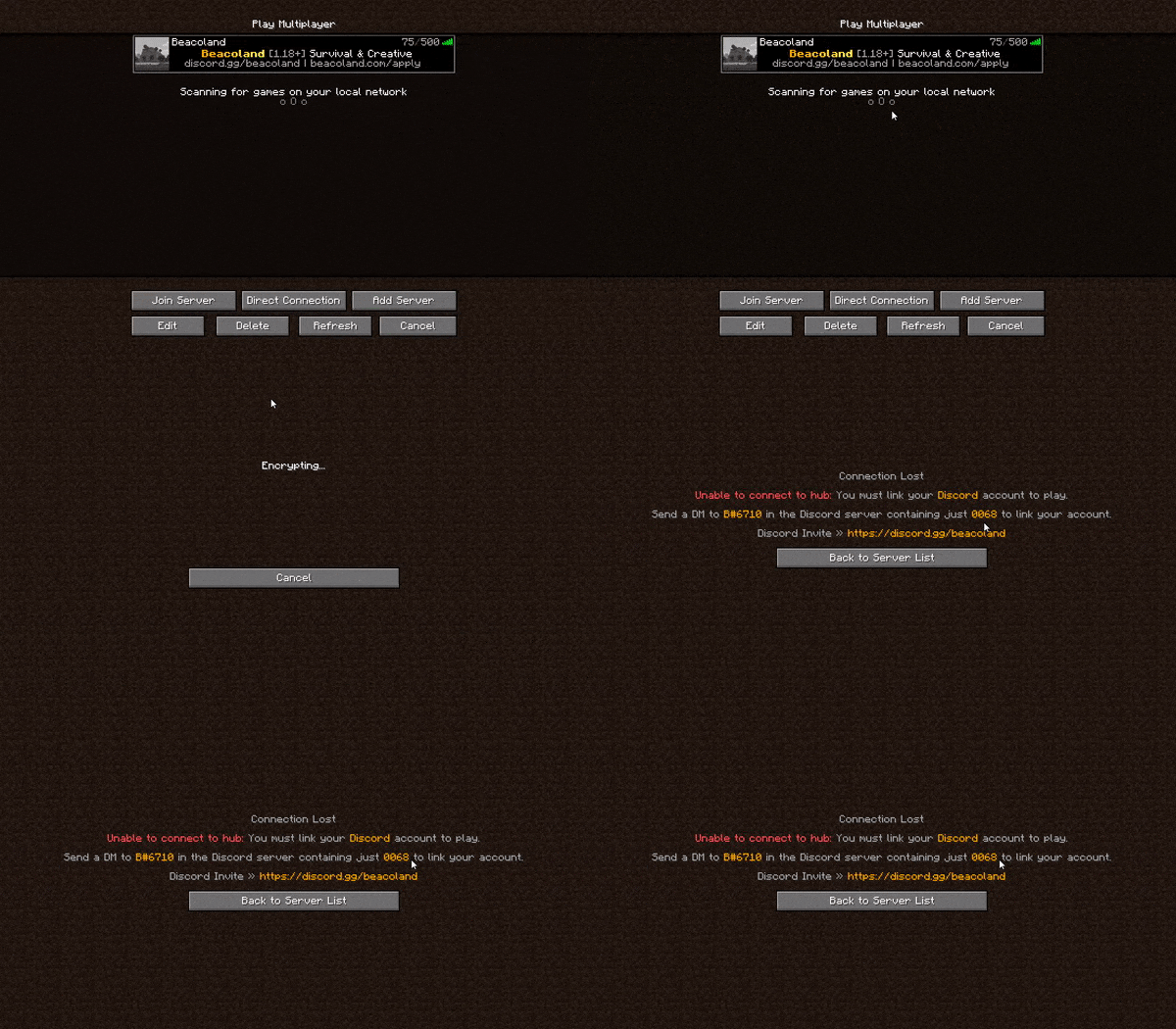
Connect to Beacoland using the server IP:
When you join, the server will generate a 4-digit linking code.
Step 2: Link Your Account on Discord #
Once you have your code:
- Open Discord
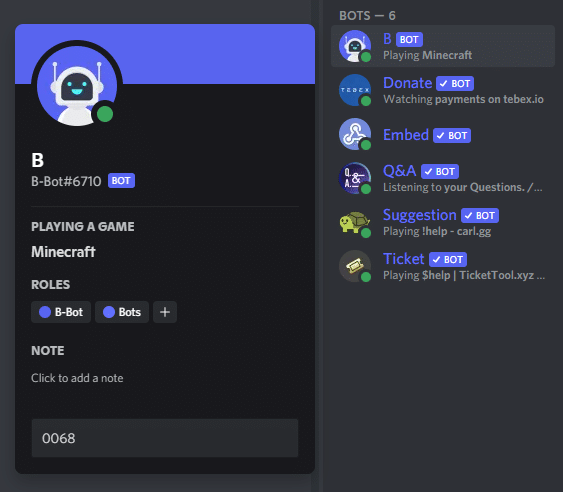
- Send a direct message to @B-Bot
- Paste your 4-digit code and send it
This links your Minecraft account to your Discord account.
Step 3: Confirm Your Account Is Linked #
If successful, B-Bot will reply with a confirmation message.
Once linked, you’ll have full access to the server and can start playing.
Troubleshooting: Can’t Message B-Bot? #
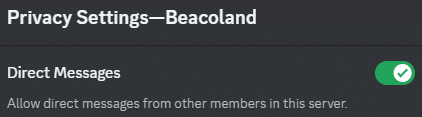
If you can’t send a message, your privacy settings may be blocking it.
To fix this:
- Click the dropdown next to Beacoland in Discord
- Open Privacy Settings
- Enable “Allow direct messages from server members”
Then try sending your code again.
Troubleshooting: Invalid or Unknown Code #
If B-Bot replies with:
“I don’t know of such a code, try again”
- Double-check the code was entered correctly
- Rejoin the Minecraft server to generate a new code
Codes are temporary and will expire if not used.
Important Notes #
- You must be approved before linking accounts
- You need the Member role in Discord
- Each linking code is temporary
You’re Ready! #
Once your account is linked, you’re ready to join Beacoland and start playing.


